

AI Chats for Odoo
HAPP AI works with Odoo
and all your messengers in a single interface
 Telegram
 Viber
Viber Instagram
 Facebook
 WhatsApp
What the integration gives you
Odoo plus every messenger your customers already use — wired into one assistant that talks, books, and ships.
 Native sync
Orders flow into Odoo in seconds
AI confirms an order in chat — HAPP creates it in your pipeline with the right stage, mapped fields, and source attribution.
Telegram“Є куртка зимова в наявності?”
1.8s ago
NewOrder #1047
Куртка зимова
All channels in one inbox
Odoo plus every messenger your customers already use — wired together as one feed.
TelegramInstagramWhatsAppViberFacebookCatalog, customers, funnel, orders
Every Odoo entity is available to AI in real time — no delays, no manual exports.
Product catalog
Live prices · stock
Customer base
Purchase history
Sales funnel
Pipeline stages
Orders
Auto-create
Instant replies, 24/7
AI answers under a second. Zero leads lost overnight or on weekends.
Smooth handoff to a manager
AI detects complex cases and passes them on with full chat history and customer profile.
Complex question detected
refund + custom shipping
Context packed
18 messages · order #4827

Slava joined the chat
customer doesn’t notice the switch
Every lead gets an AI readiness score
Every dialog gets an AI readiness score and lands at the right pipeline stage. Hot leads reach a rep first.
Хочу замовити iPhone 17 Pro сьогодні
Funnel analytics
Conversion, response time, top questions, team productivity — by channel and by assistant.
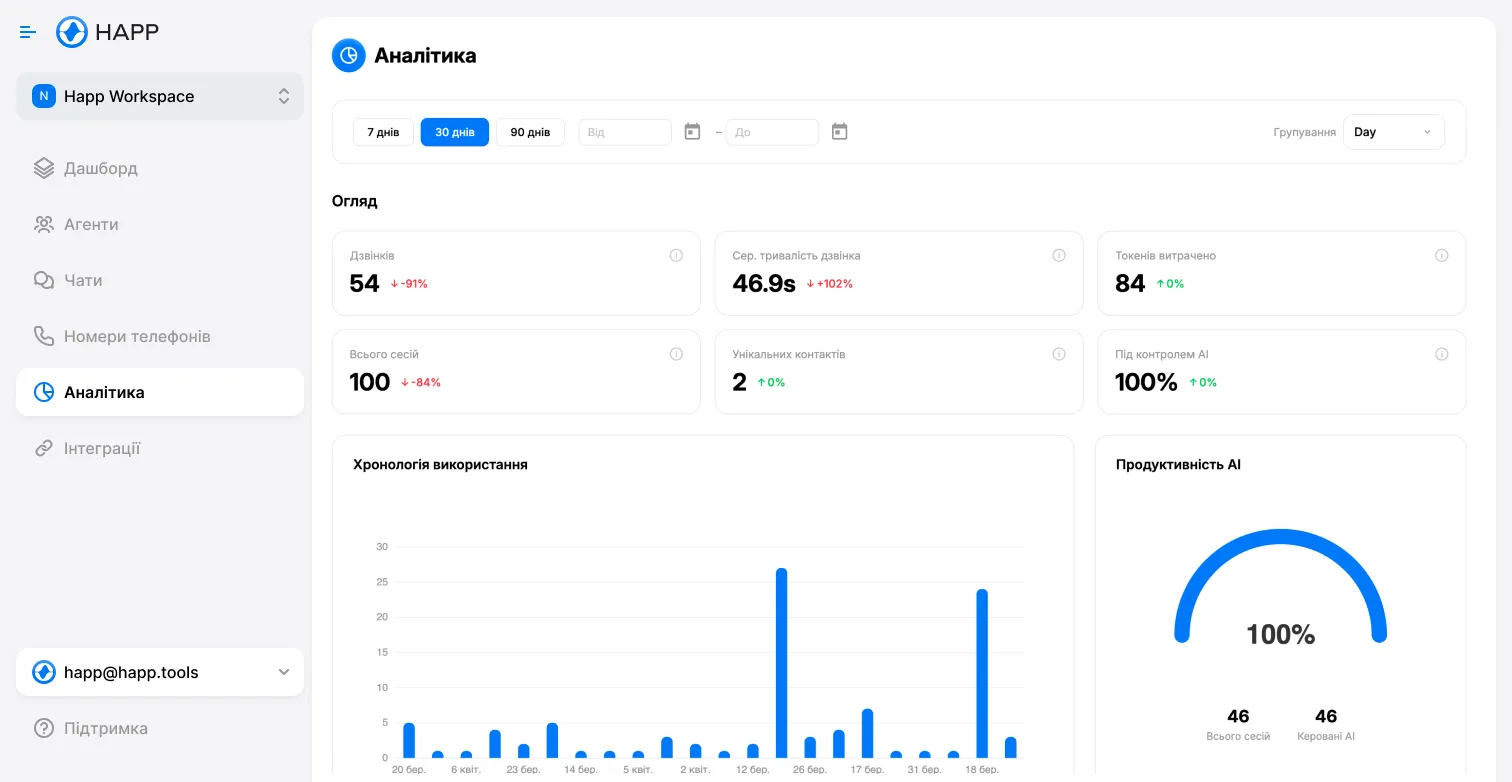
Conversion
+38%
Avg reply
0.8s
Top channel
Telegram
See how Odoo plugs in
Click each step — it's the real platform, just paused for you.
Step 1: Find the integration
Open Integrations → Odoo
What you need to connect
A short checklist — once you have these four things, the rest takes under three minutes.
Odoo account
An active plan with API access enabled. Odoo exposes the API on all paid tiers — confirm in Settings → API.
API key
The personal API token from Odoo → Settings → API. Generate a fresh one if you don't have it yet.
Where exactly to find it?HAPP account + assistant
Active HAPP workspace at my.happ.tools with at least one assistant configured to talk to your customers.
Pipeline & initial stage
Pick which Odoo pipeline new orders land in and the starting stage. We'll help you map it if you're not sure.
Where exactly to find your API key
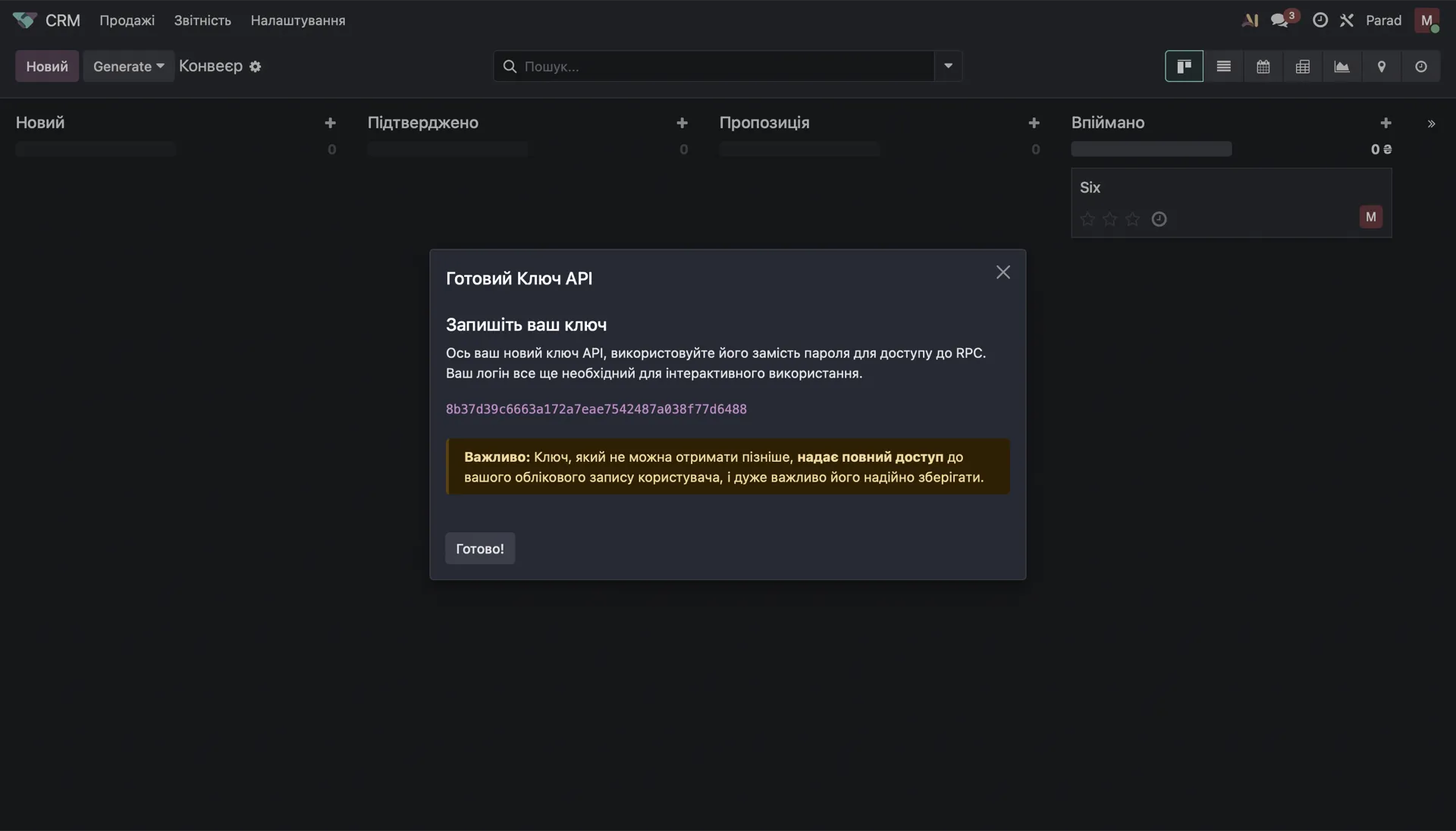
Three steps inside Odoo — and the key is yours to paste into HAPP.
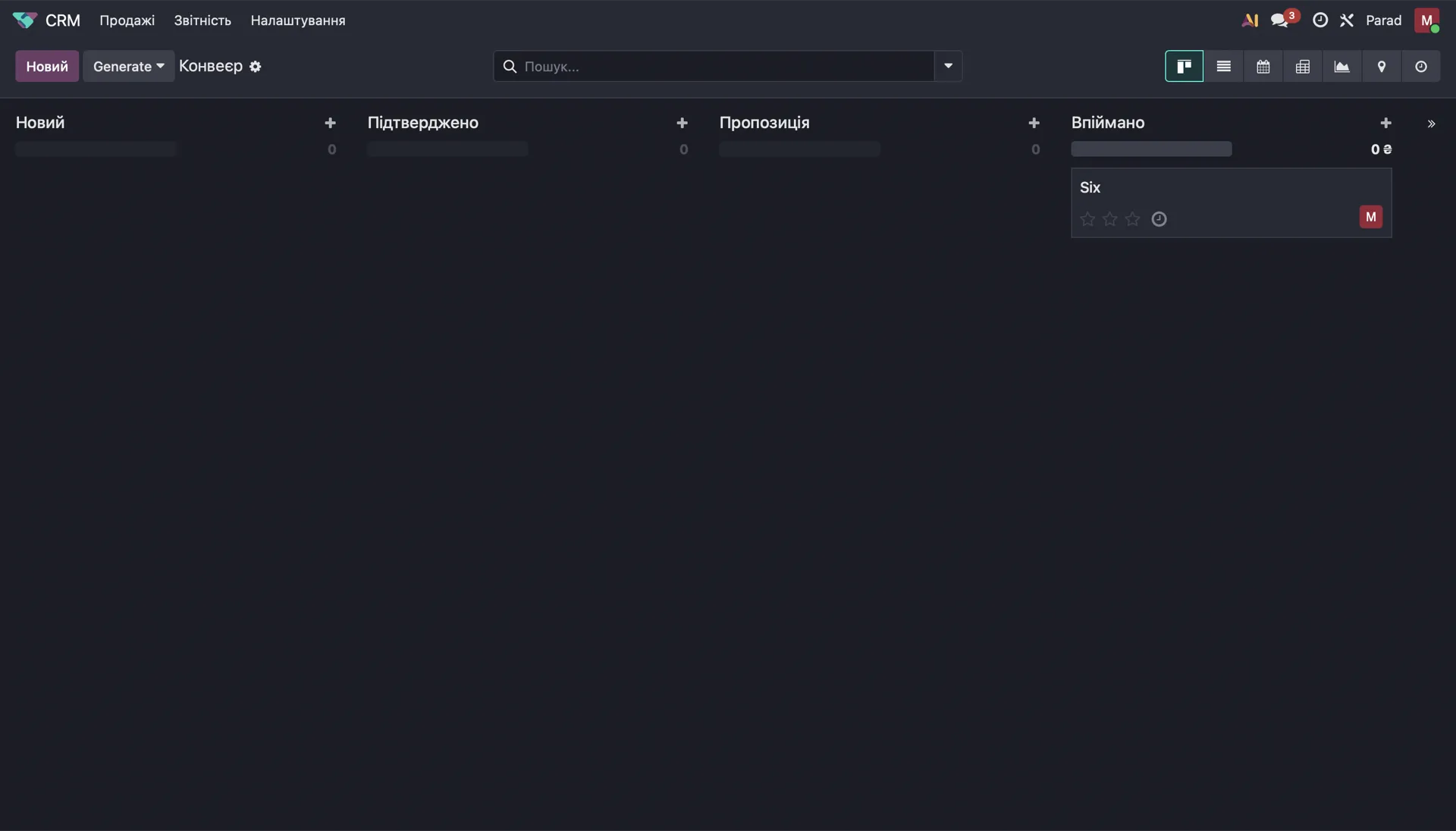
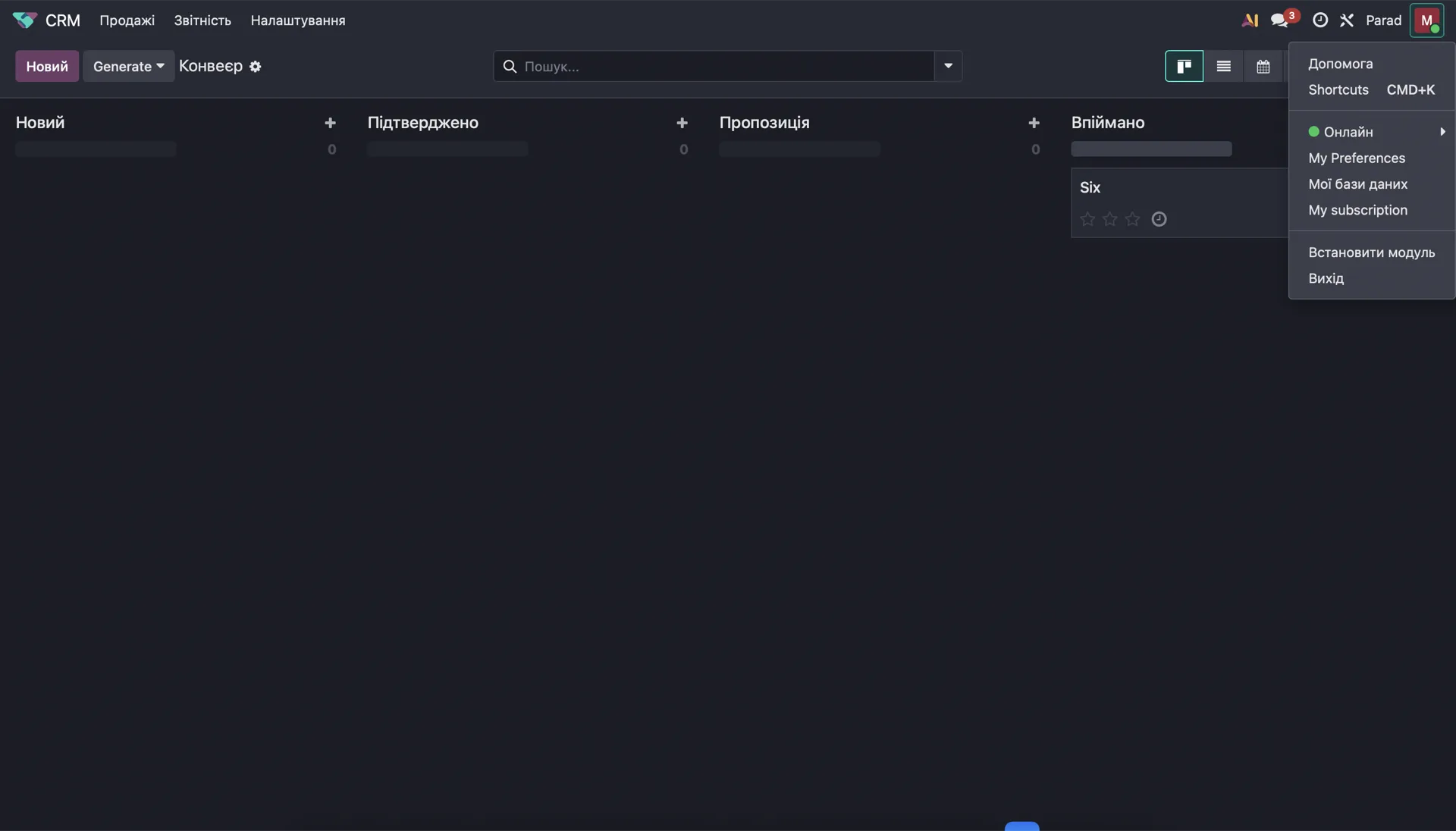
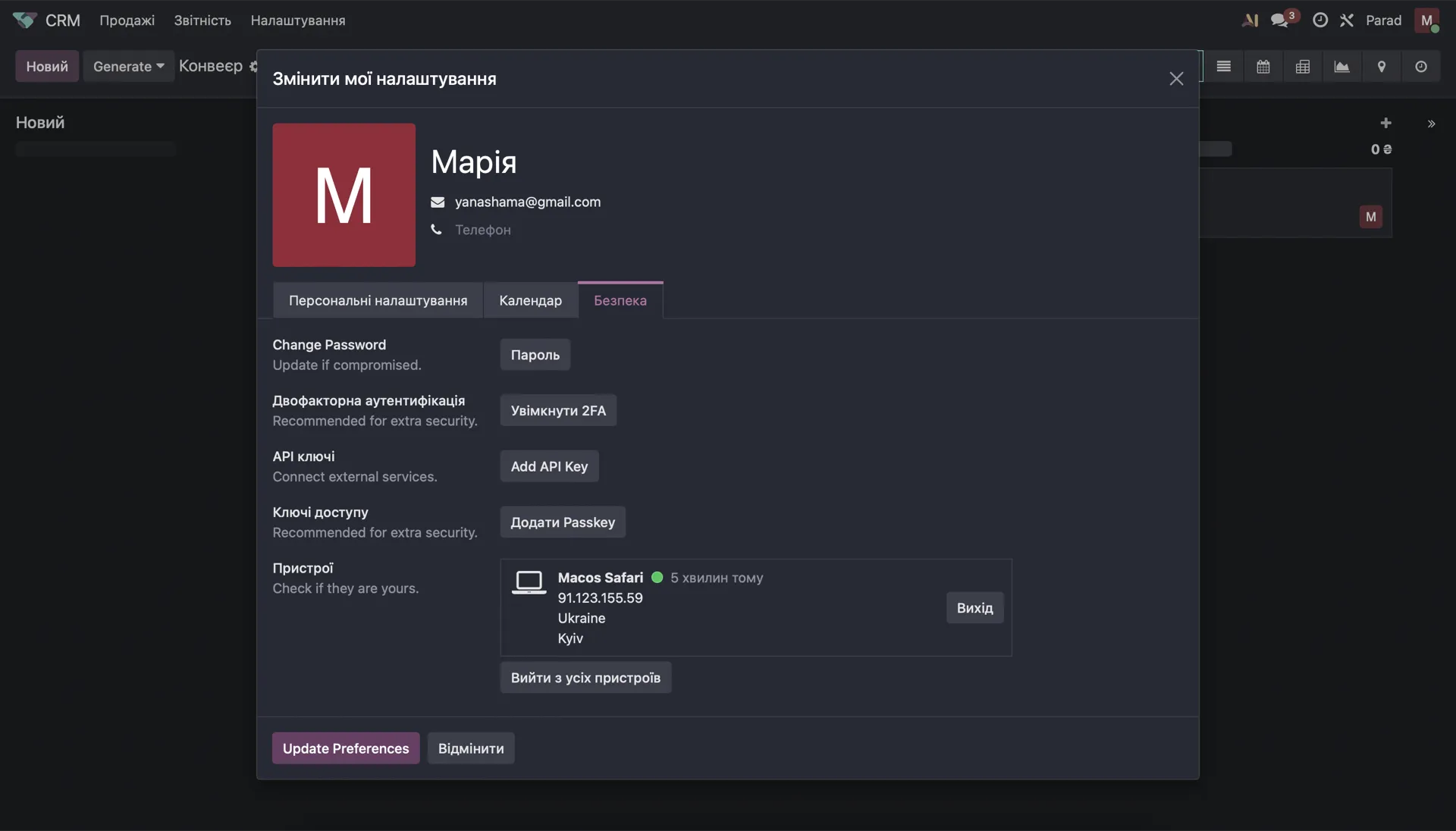
Open profile → My Preferences
In your Odoo dashboard click the avatar in the top-right, then pick My Preferences.
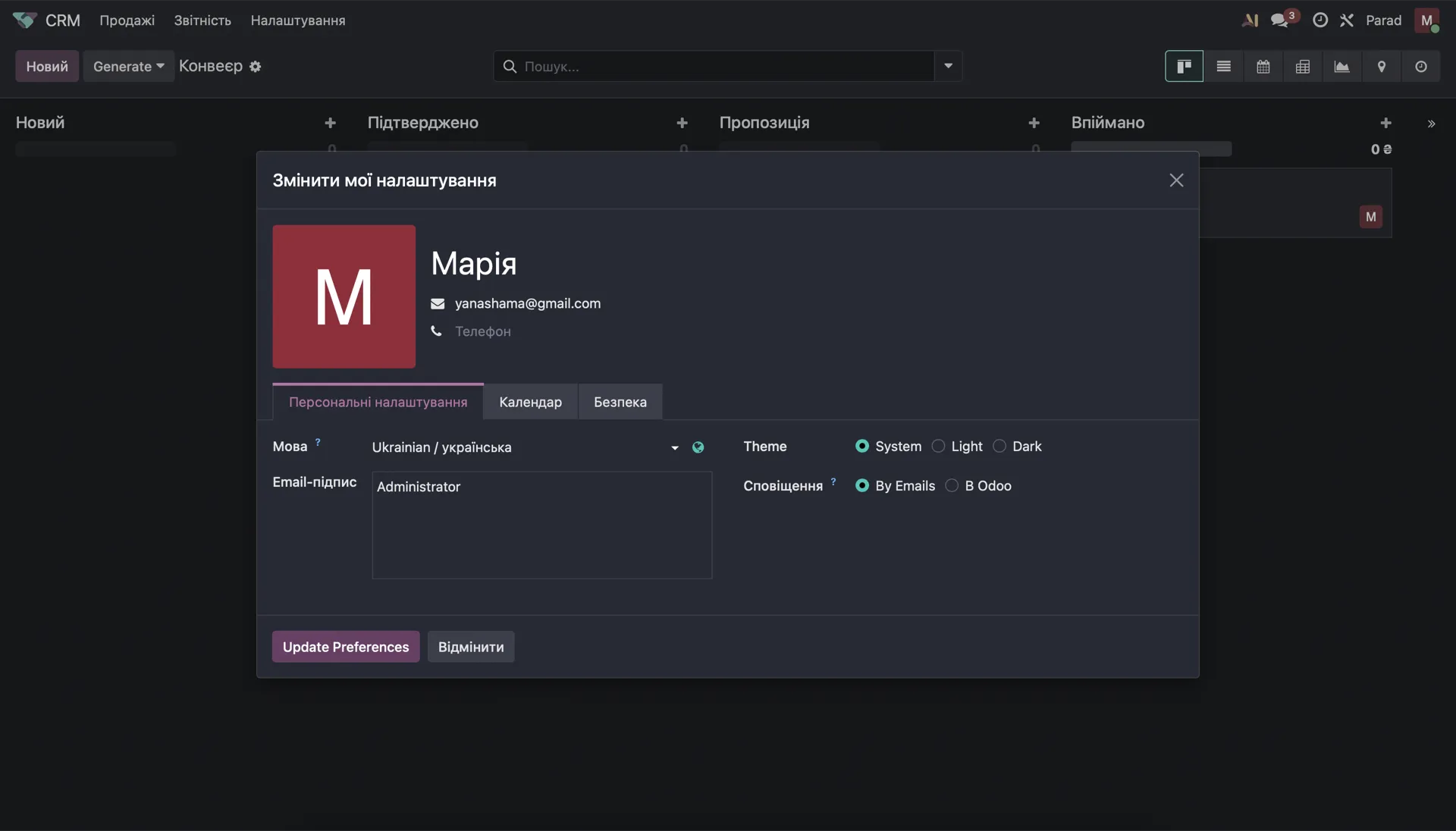
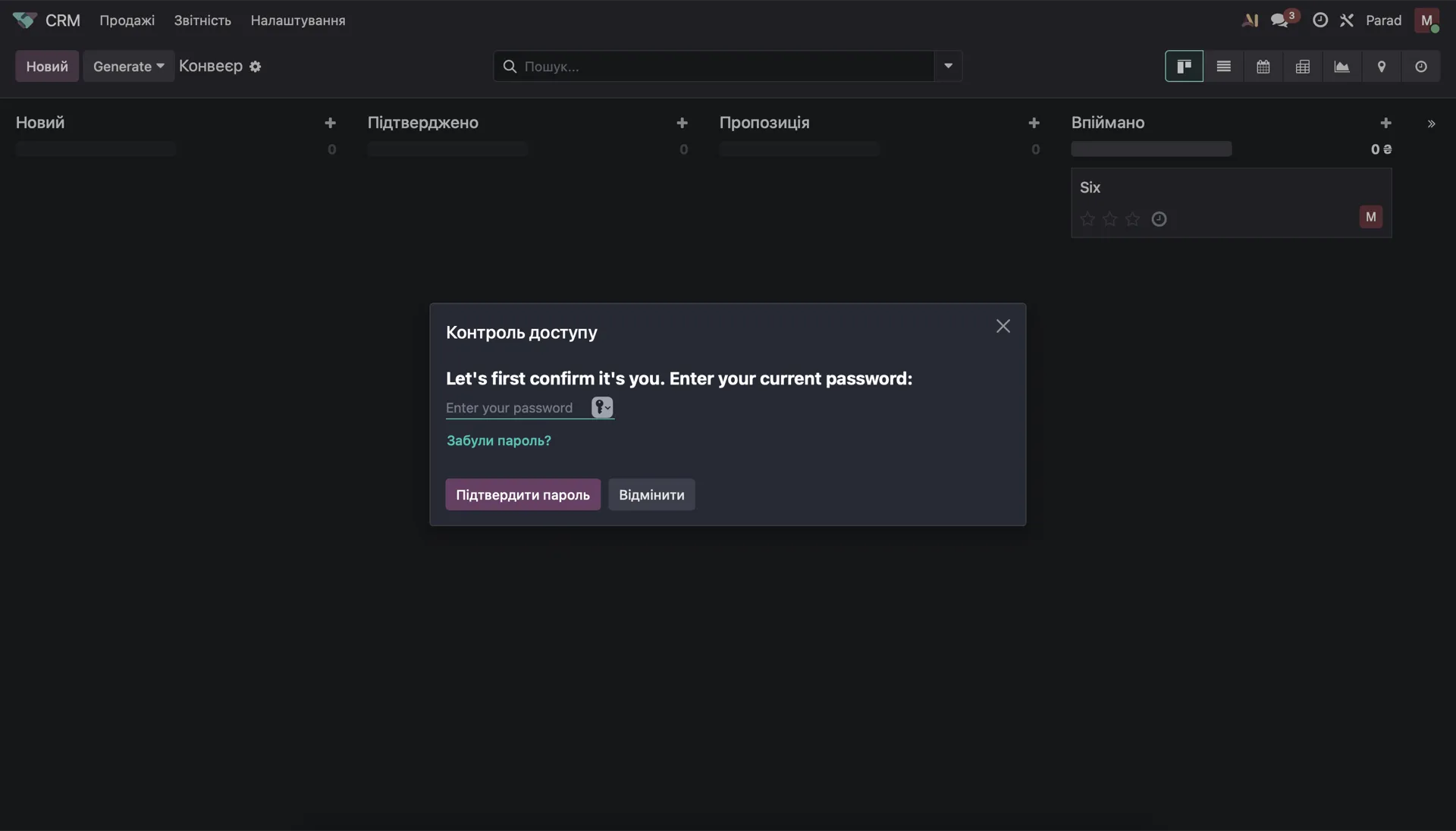
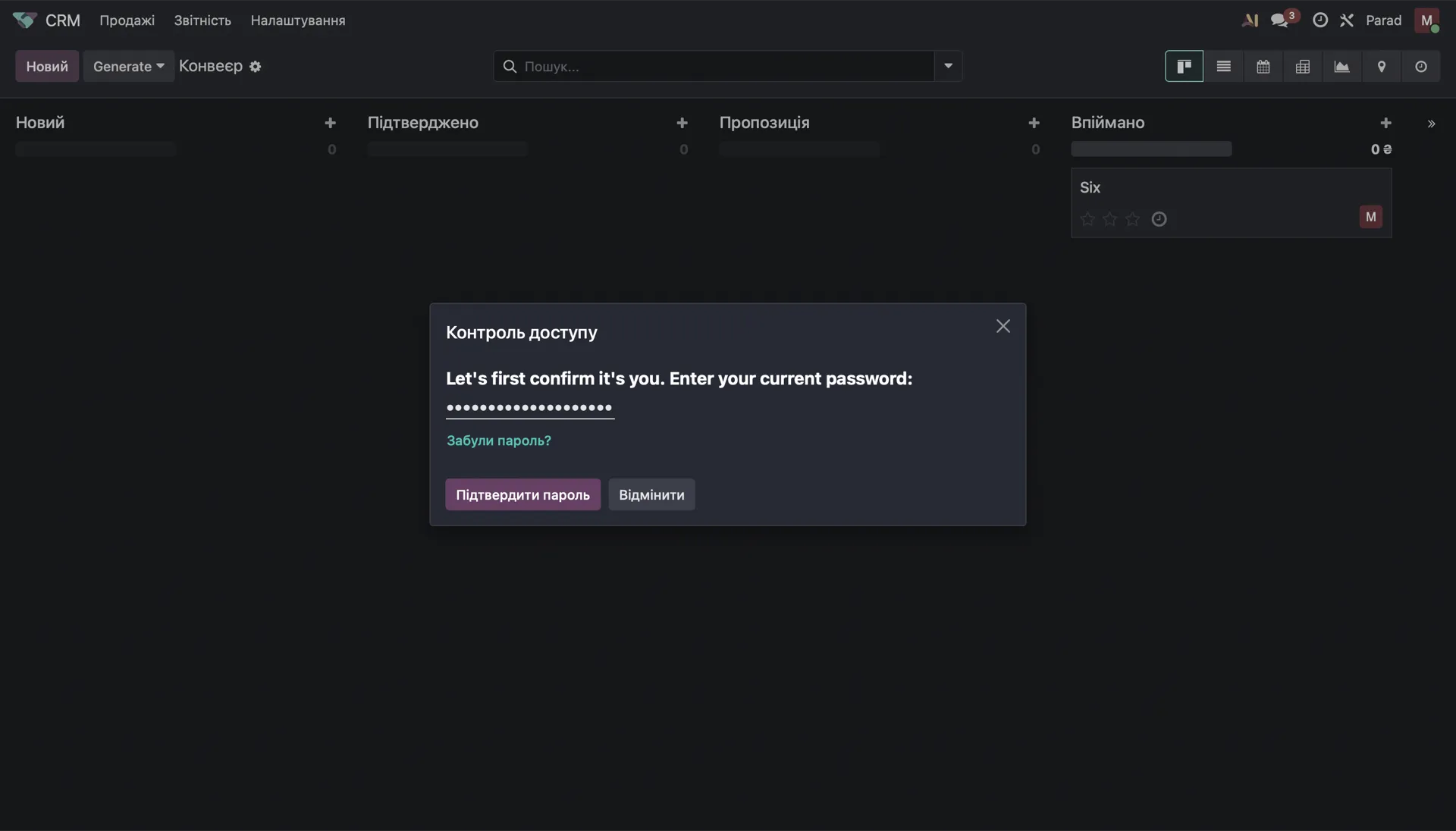
Безпека tab → Add API Key → confirm password
Switch to Безпека, press Add API Key, then enter your current password to confirm it's you.
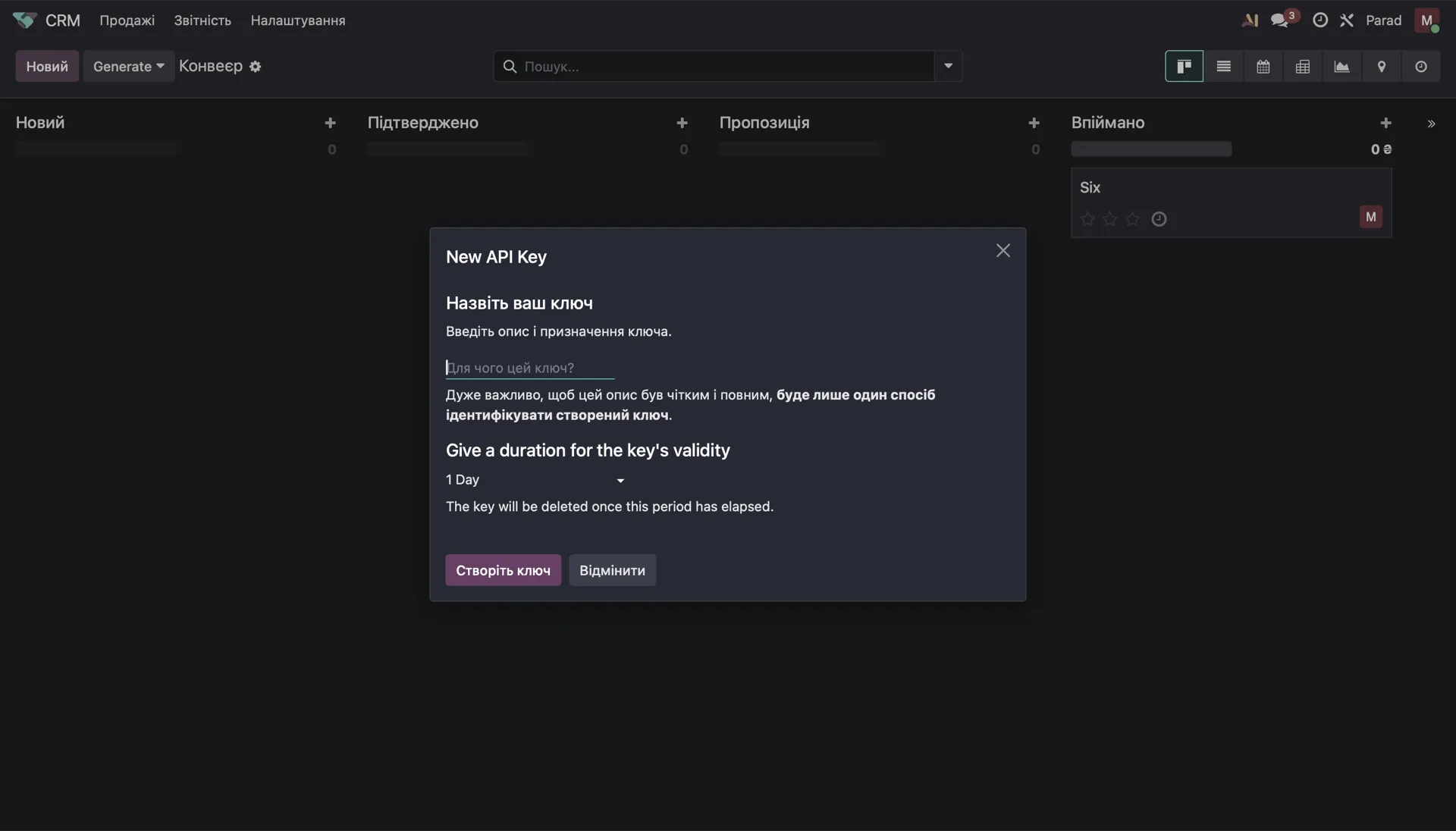
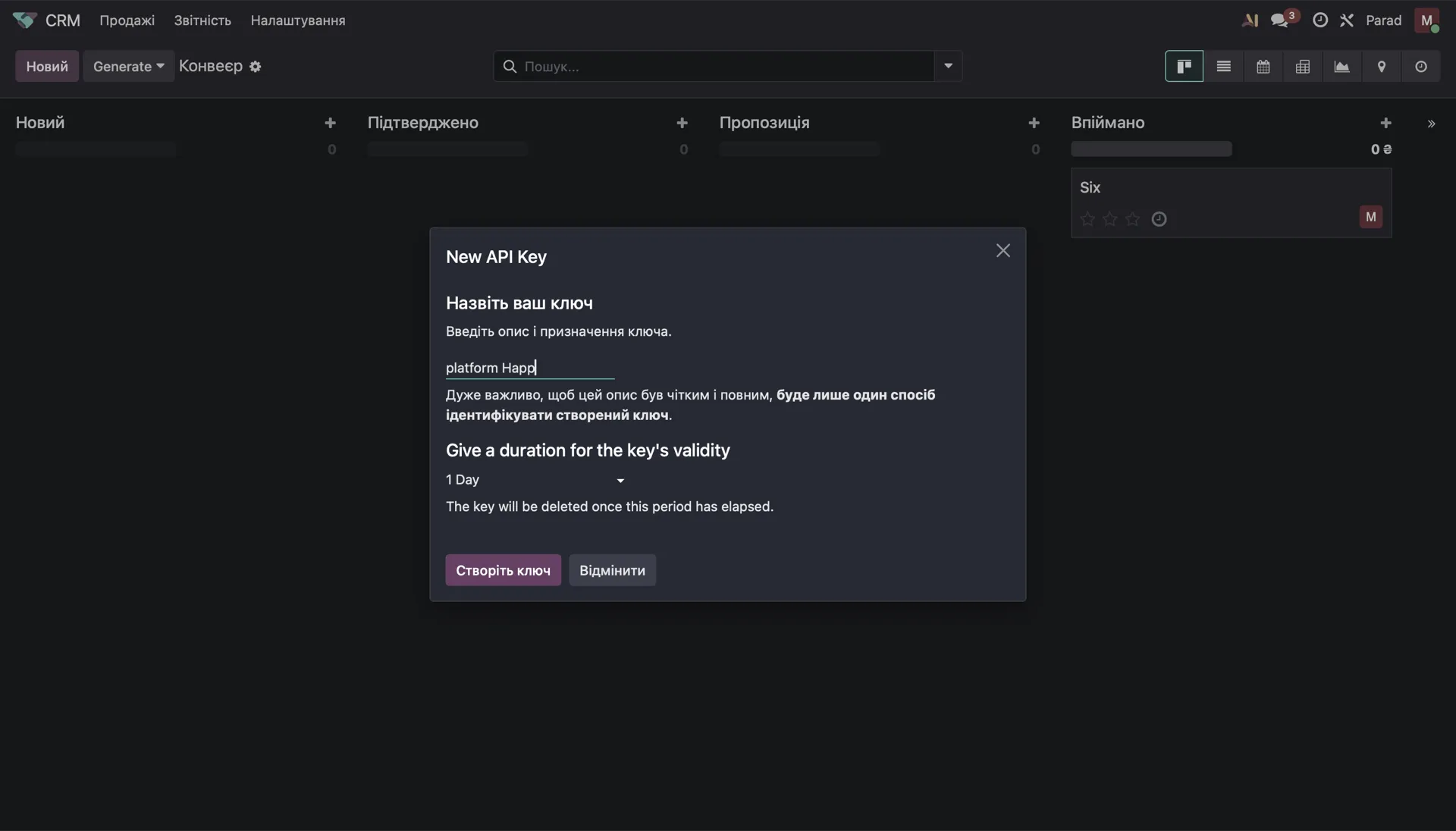
Name the key + change duration to "1 Year"
Type any name (e.g. Platform Hub) and change the duration from "1 Day" to "1 Year" — otherwise the key expires in 24 hours. Press Створіть ключ.
How you'll know it's connected
Once HAPP accepts the API key, your Odoo card flips to Connected — same green badge as Instagram and Telegram Push.

Ассистент по прийому інтернет-замовлень на покупку гаджетів
 Call Webhook
Account Information
https://api.happ.tools/api/voice-assistant-webhooks/call-event
06.02.2026, 14:41
 Telegram Push
Account Information
Slava Saloid
24.01.2026, 16:53
 Odoo
OdooAccount Information
happy-store.odoo.com
08.02.2026, 16:22
Green "Connected" pill
The blue Choose button is replaced by a green pill. Same UX as Instagram and Telegram Push — instantly familiar.
Account Information visible
Your Odoo workspace name and the exact date & time of connection are shown right on the card — easy to audit.
Settings & disconnect at hand
opens Search/Create toggles, gives you Disconnect — no hunting through menus.
What to do if it won't connect
Every error has a specific cause — find yours and fix it in under a minute.
Support
Can't find your error?
Our team will look at your Odoo setup individually — share the error and we'll point at the exact fix.
Contact support →API key
Invalid API key
INVALID_API_KEY
Re-copy the key without spaces. Use the API token from Odoo → Settings → General → API — make sure you generated it before copying.
Rate
RATE_LIMITED
Odoo API rate limit hit
The Odoo API is returning 429. Wait 1–2 minutes and retry — if it keeps happening, contact us and HAPP will throttle requests on our side.
Workspace
Wrong workspace URL
WRONG_WORKSPACE
Enter the workspace URL exactly as it appears in your Odoo address bar — e.g. your-shop.odoo.com.
Token
401·key
TOKEN_REVOKED
An admin rotated or revoked the key in Odoo → Settings → General → API. Generate a fresh one and reconnect in HAPP.
Sync
Orders aren't reaching Odoo
ORDERS_NOT_CREATING
Three things to check, in order:
- 1HAPP → Integrations → Odoo → Settings — pipeline and initial stage are selected.
- 2Odoo client fields used in field mapping are active (not archived).
- 3Odoo → Settings → API → IP whitelist is empty or includes HAPP egress IPs.
FAQ
Answers to the most common questions about the Odoo integration with HAPP.
Is it safe to share the Odoo API key with HAPP?
Yes. The key is stored encrypted, used only to call the Odoo REST API on your behalf, and never shown back — even to your own teammates in HAPP. You can revoke it any time in Odoo → Settings → API.
How many Odoo workspaces can I connect to HAPP?
Multiple. Each workspace is a separate integration with its own API key. Plans differ by the number of connected integrations — check your current limit in HAPP → Billing.
How fast do orders from chat appear in Odoo?
In real time. Once the assistant confirms an order in chat, HAPP sends it to Odoo within 1–2 seconds — the order shows up in your selected pipeline with the right initial stage.
Can I route orders to a specific pipeline or stage?
Yes. In HAPP → Integrations → Odoo → Settings, pick the pipeline and the initial stage. Different assistants can route orders into different pipelines — useful when you split chat support from warm leads.
How does the assistant fill client fields (name, phone, city)?
HAPP extracts fields from the conversation and maps them to Odoo client and order fields automatically. Custom fields can be mapped manually in Integration Settings — the dropdown lists everything you have configured in Odoo.
Can I edit an AI-created order in Odoo manually?
Yes. Orders created by the assistant are regular Odoo orders — your managers see them in the pipeline exactly the same way and can edit, reassign, or move them between stages without any restrictions.
What happens to orders if I disconnect the integration?
All previously created orders stay in Odoo untouched. The assistant simply stops sending new ones until you reconnect — no data is deleted on either side.
Disconnecting and reconnecting
What happens to your orders and settings, and how to safely turn the integration off or on.
Disconnect
How to disconnect Odoo
Three steps — the assistant stops creating orders, your Odoo data stays.
- 1Go to HAPP → Integrations → Odoo.
- 2Click "Disconnect" next to the connected workspace.
- 3Confirm the action in the dialog.
What happens after disconnecting
- New chat orders stop being sent to Odoo
- Existing orders in Odoo stay untouched
- Assistant continues to work in chat — only the Odoo sync stops
- API key is not revoked in Odoo — revoke it there separately if needed
Reconnect
How to reconnect Odoo
Three steps — pipeline mapping and field mapping are restored automatically.
- 1Go to HAPP → Integrations → Odoo.
- 2Click "Connect", enter your workspace and API key.
- 3Settings, pipeline mapping and field mapping reattach to the integration.
What is preserved after reconnecting
- Pipeline and initial-stage selection
- Field mapping (client fields, custom fields)
- Assistant → workspace binding
- Order statistics and analytics for the integration