

AI Chats for SalesDrive
HAPP AI works with SalesDrive
and all your messengers in a single interface
 Telegram
 Viber
Viber Instagram
 Facebook
 WhatsApp
What the integration gives you
SalesDrive plus every messenger your customers already use — wired into one assistant that talks, books, and ships.
 Native sync
Orders flow into SalesDrive in seconds
AI confirms an order in chat — HAPP creates it in your funnel with the right status, mapped fields, and source attribution.
Telegram“Беру Pro, чорний”
1.8s ago
NewOrder #4827
iPhone 17 Pro
All channels in one inbox
SalesDrive plus every messenger your customers already use — wired together as one feed.
TelegramInstagramWhatsAppViberFacebookSalesDriveCatalog, customers, funnel, orders
Every SalesDrive entity is available to AI in real time — no delays, no manual exports.
Product catalog
Live prices · stock
Customer base
Purchase history
Sales funnel
Pipeline stages
Orders
Auto-create
Instant replies, 24/7
AI answers under a second. Zero leads lost overnight or on weekends.
Smooth handoff to a manager
AI detects complex cases and passes them on with full chat history and customer profile.
Complex question detected
refund + custom shipping
Context packed
18 messages · order #4827

Slava joined the chat
customer doesn’t notice the switch
Every lead gets an AI readiness score
Every dialog gets an AI readiness score and lands at the right funnel stage. Hot leads reach a rep first.
Хочу замовити iPhone 17 Pro сьогодні
Funnel analytics
Conversion, response time, top questions, team productivity — by channel and by assistant.
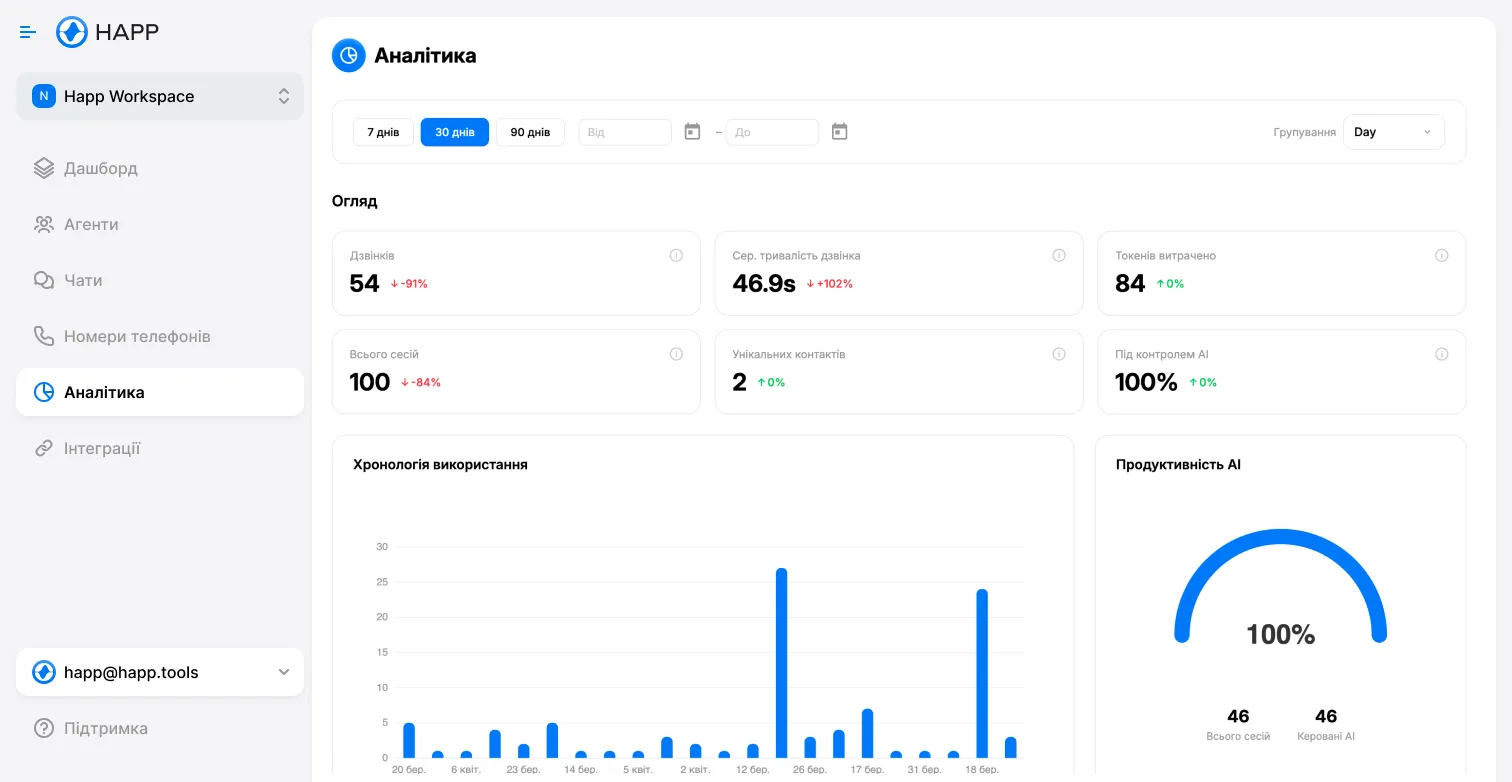
Conversion
+38%
Avg reply
0.8s
Top channel
Telegram
See how SalesDrive plugs in
Click each step — it's the real platform, just paused for you.
Step 1: Find the integration
Open Integrations → SalesDrive
What you need to connect
A short checklist — once you have these four things, the rest takes under three minutes.
SalesDrive account
An active business plan with API access enabled in Settings → API. Free tiers don't expose the API.
API key (general)
The personal API token from SalesDrive → Settings → API. Not the Form-API key — those are different.
Where exactly to find it?HAPP account + assistant
Active HAPP workspace at my.happ.tools with at least one assistant configured to talk to your customers.
Funnel & initial status
Pick which SalesDrive funnel new orders land in and the starting status. We'll help you map it if you're not sure.
Where exactly to find your API key
Three clicks inside SalesDrive — and the key is yours to paste into HAPP.
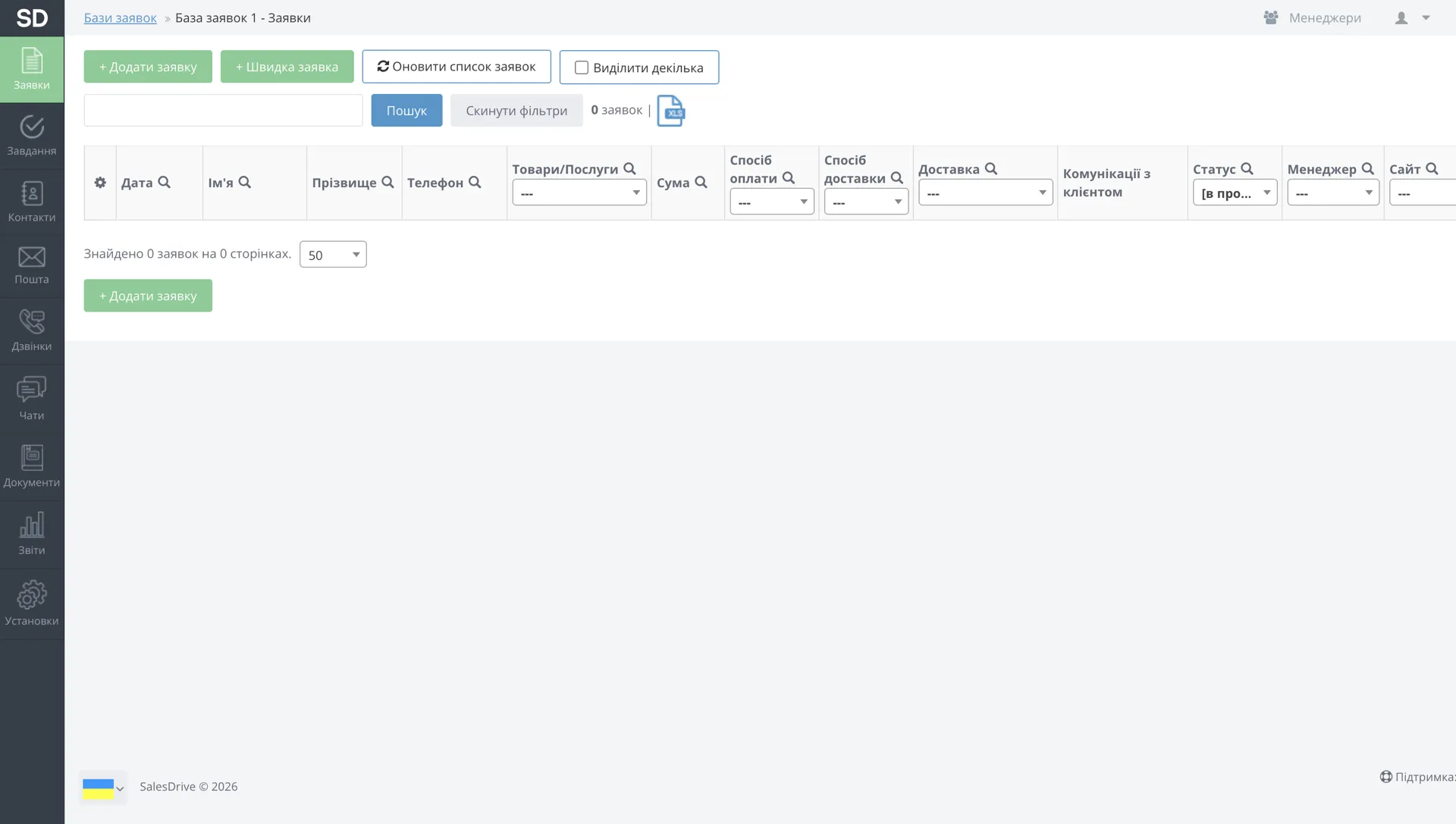
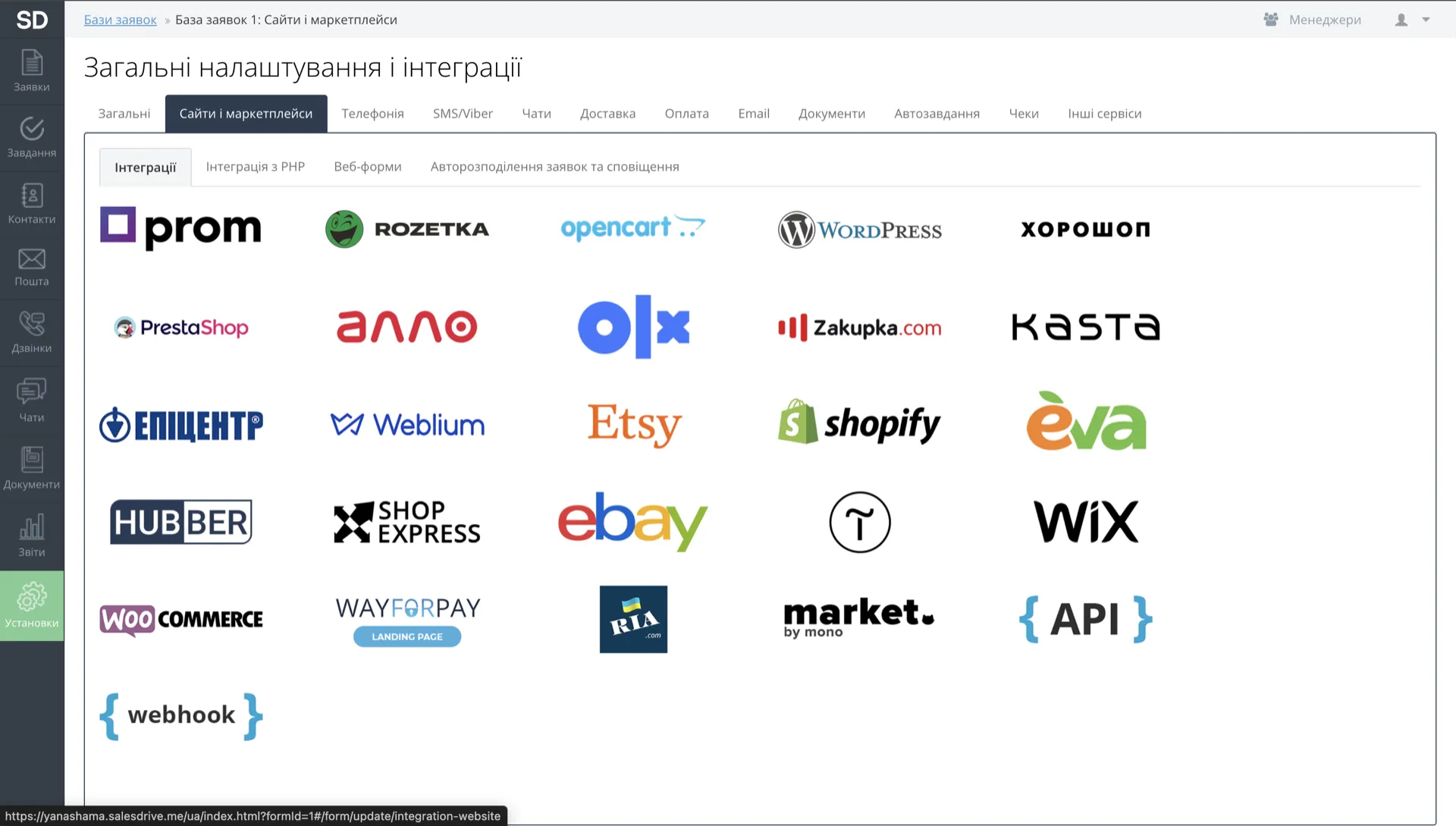
From the home screen, open Settings
In SalesDrive admin go to Settings → General settings & integrations.
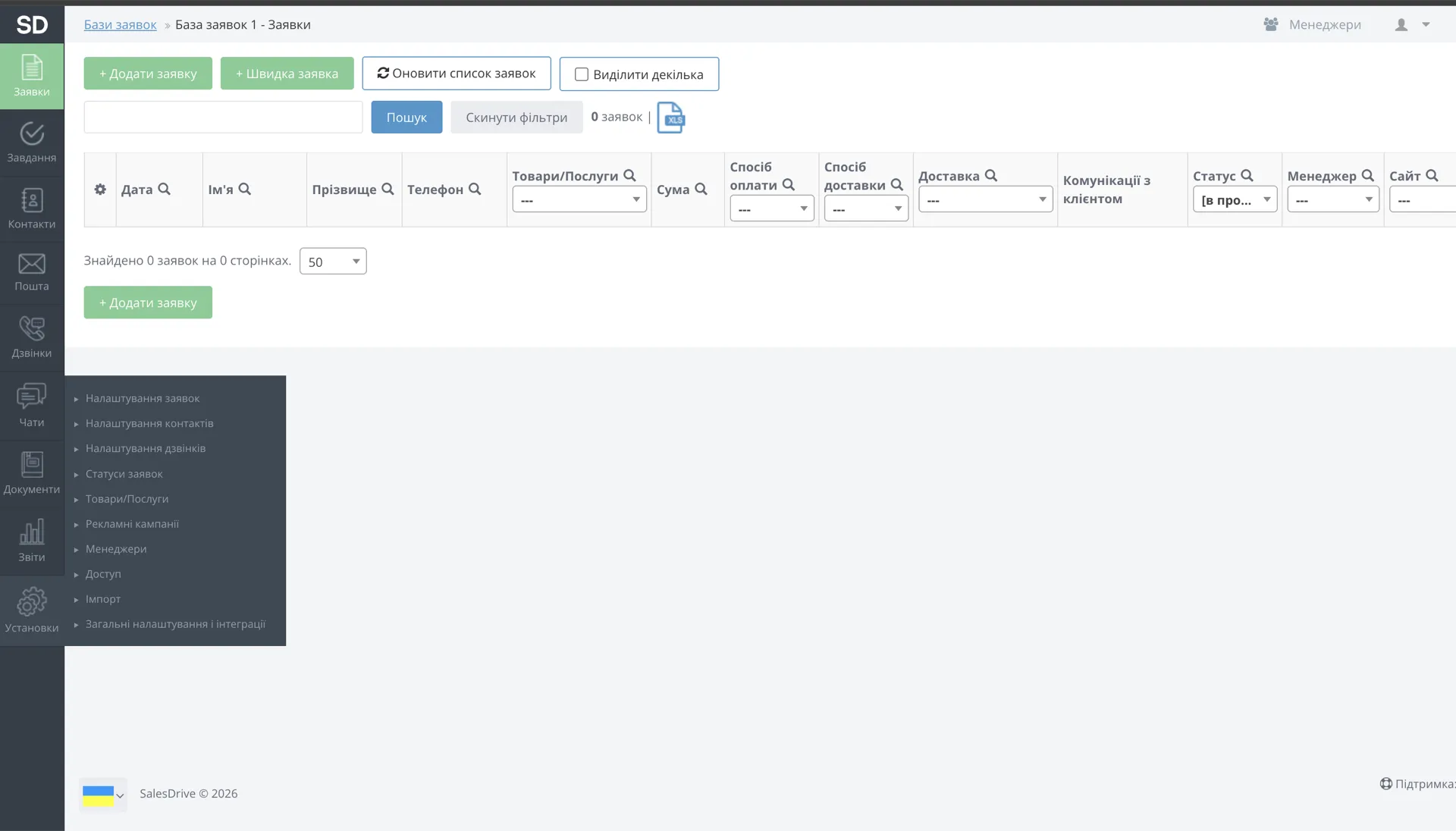
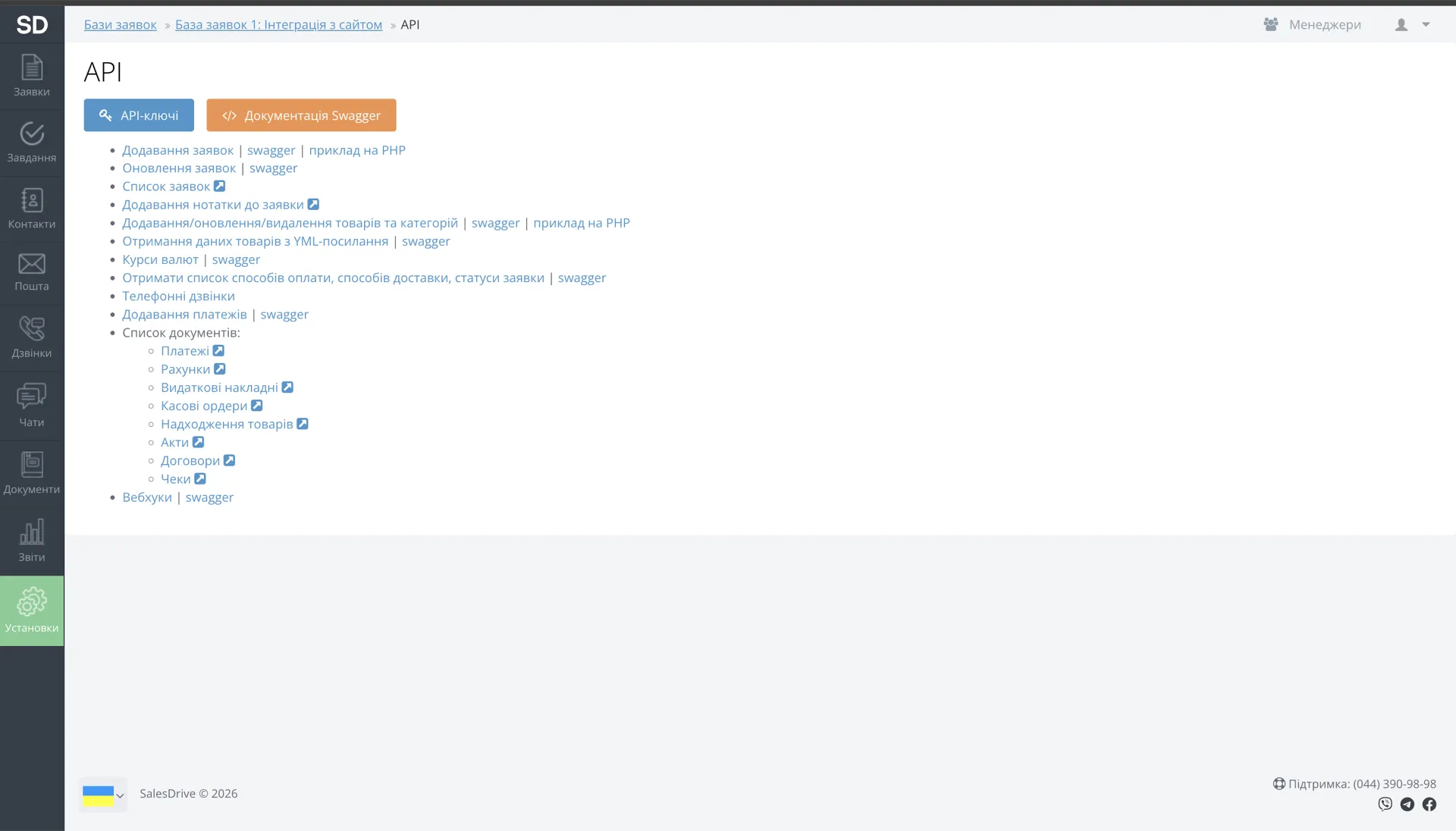
Open the API section
Navigate to Own sites & marketplaces and pick API.
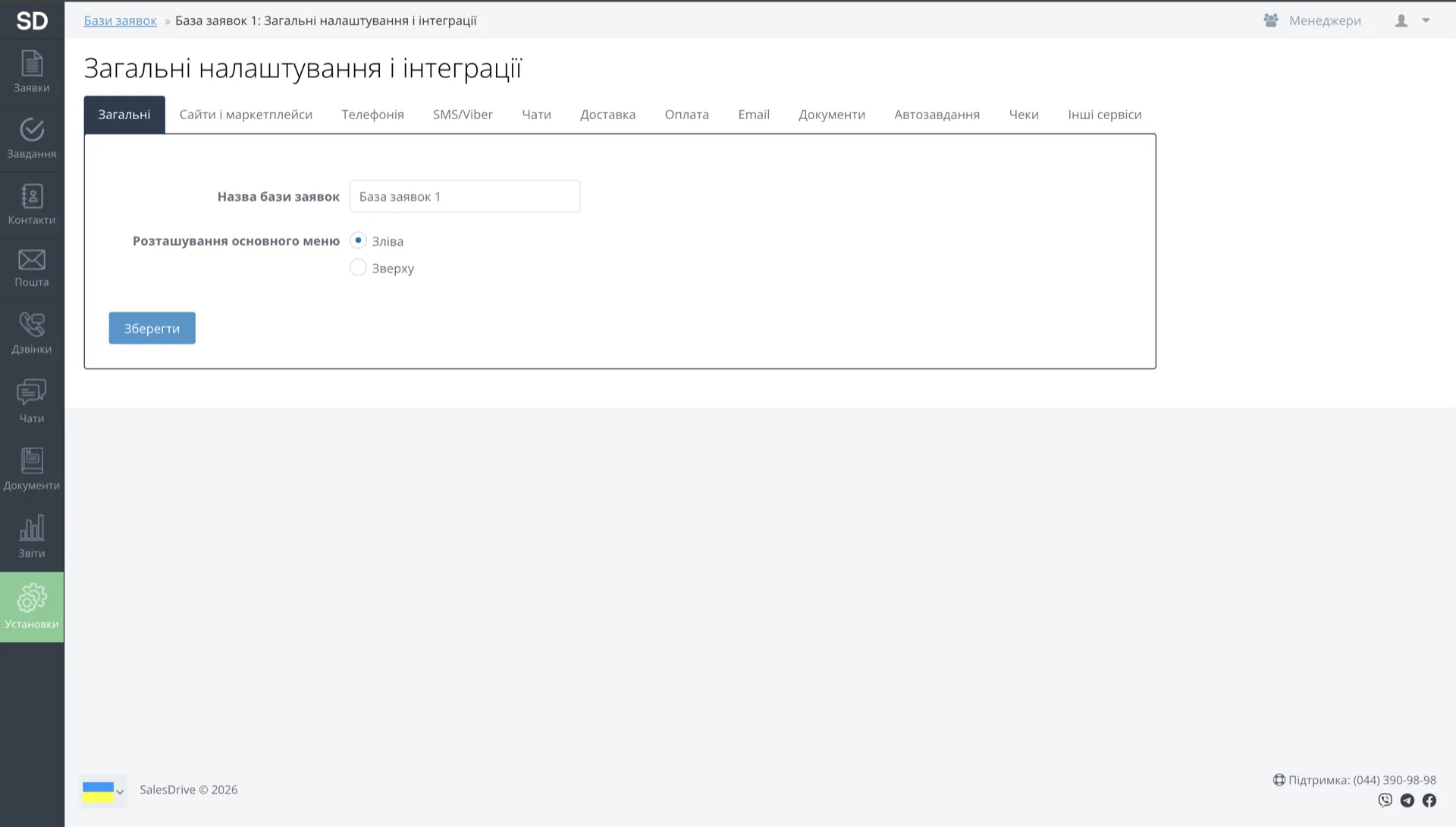
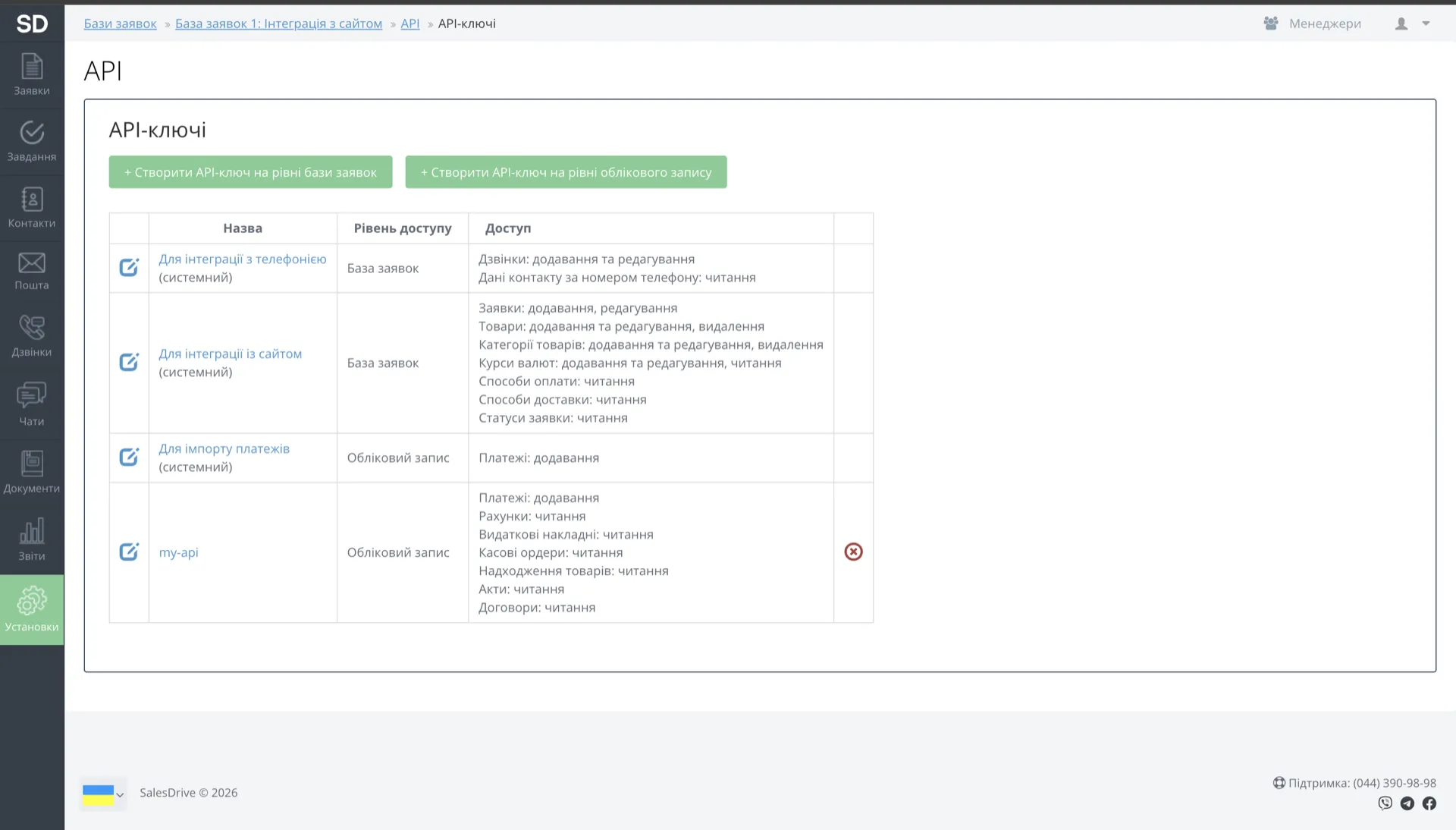
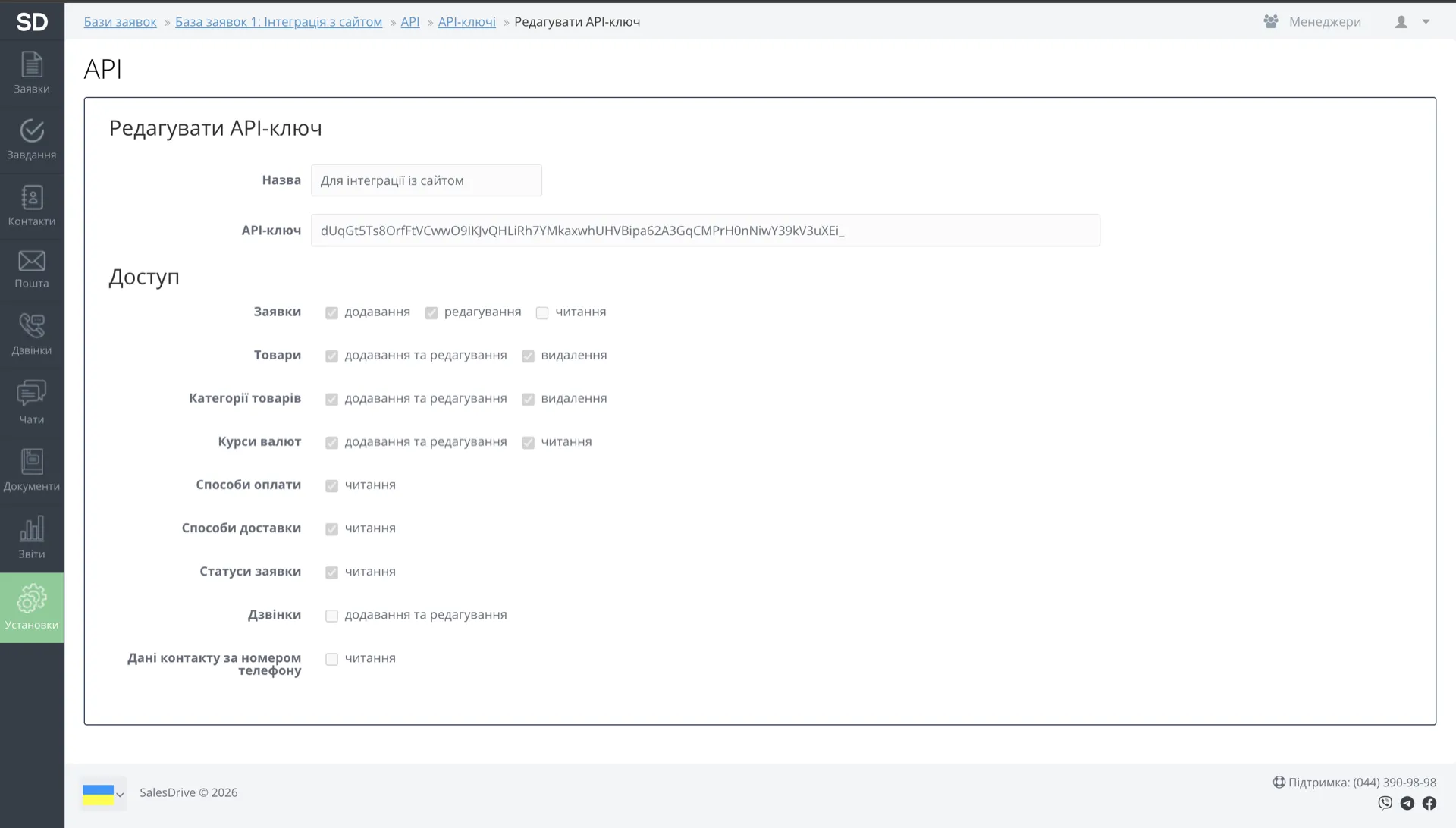
Grab the system key from the table
Click API keys, then in the table choose the row "For website integration (system)" — copy that key.
How you'll know it's connected
Once HAPP accepts the API key, your SalesDrive card flips to Connected — same green badge as Instagram and Telegram Push.

Ассистент по прийому інтернет-замовлень на покупку гаджетів
 Call Webhook
Account Information
https://api.happ.tools/api/voice-assistant-webhooks/call-event
06.02.2026, 14:41
 Telegram Push
Account Information
Slava Saloid
24.01.2026, 16:53
SalesdriveAccount Information
happ-tools.salesdrive.me
08.02.2026, 16:22
Green "Connected" pill
The blue Choose button is replaced by a green pill. Same UX as Instagram and Telegram Push — instantly familiar.
Account Information visible
Your store domain and the exact date & time of connection are shown right on the card — easy to audit.
Settings & disconnect at hand
opens Search/Create toggles, gives you Disconnect — no hunting through menus.
What to do if it won't connect
Every error has a specific cause — find yours and fix it in under a minute.
Support
Can't find your error?
Our team will look at your SalesDrive setup individually — share the error and we'll point at the exact fix.
Contact support →API key
Invalid API key
INVALID_API_KEY
Re-copy the key without spaces. Use the general API key from SalesDrive → Settings → API — not the Form-API key.
Rate
RATE_LIMITED
SalesDrive API rate limit hit
The SalesDrive API is returning 429. Wait 1–2 minutes and retry — if it keeps happening, contact us and HAPP will throttle requests on our side.
Domain
Wrong subdomain
WRONG_DOMAIN
Enter the subdomain only. For happstore.salesdrive.me the value is happstore.
Token
401·key
TOKEN_REVOKED
An admin rotated or revoked the key in SalesDrive → Settings → API. Generate a fresh one and reconnect in HAPP.
Sync
Orders aren't reaching SalesDrive
ORDERS_NOT_CREATING
Three things to check, in order:
- 1HAPP → Integrations → SalesDrive → Settings — funnel and initial status are selected.
- 2SalesDrive client fields used in field mapping are active (not archived).
- 3SalesDrive → Settings → API → IP whitelist is empty or includes HAPP egress IPs.
FAQ
Answers to the most common questions about the SalesDrive integration with HAPP.
Is it safe to share the SalesDrive API key with HAPP?
Yes. The key is stored encrypted, used only to call the SalesDrive REST API on your behalf, and never shown back — even to your own teammates in HAPP. You can revoke it any time in SalesDrive → Settings → API.
How many SalesDrive stores can I connect to HAPP?
Multiple. Each store is a separate integration with its own API key and domain. Plans differ by the number of connected integrations — check your current limit in HAPP → Billing.
How fast do orders from chat appear in SalesDrive?
In real time. Once the assistant confirms an order in chat, HAPP sends it to SalesDrive within 1–2 seconds — the order shows up in your selected funnel with the right initial status.
Can I route orders to a specific funnel or status?
Yes. In HAPP → Integrations → SalesDrive → Settings, pick the funnel and the initial status. Different assistants can route orders into different funnels — useful when you split chat support from warm leads.
How does the assistant fill client fields (name, phone, city)?
HAPP extracts fields from the conversation and maps them to SalesDrive client and order fields automatically. Custom fields can be mapped manually in Integration Settings — the dropdown lists everything you have configured in SalesDrive.
Can I edit an AI-created order in SalesDrive manually?
Yes. Orders created by the assistant are regular SalesDrive orders — your managers see them in the funnel exactly the same way and can edit, reassign, or move them between statuses without any restrictions.
What happens to orders if I disconnect the integration?
All previously created orders stay in SalesDrive untouched. The assistant simply stops sending new ones until you reconnect — no data is deleted on either side.
Disconnecting and reconnecting
What happens to your orders and settings, and how to safely turn the integration off or on.
Disconnect
How to disconnect SalesDrive
Three steps — the assistant stops creating orders, your SalesDrive data stays.
- 1Go to HAPP → Integrations → SalesDrive.
- 2Click "Disconnect" next to the connected store.
- 3Confirm the action in the dialog.
What happens after disconnecting
- New chat orders stop being sent to SalesDrive
- Existing orders in SalesDrive stay untouched
- Assistant continues to work in chat — only the SalesDrive sync stops
- API key is not revoked in SalesDrive — revoke it there separately if needed
Reconnect
How to reconnect SalesDrive
Three steps — funnel mapping and field mapping are restored automatically.
- 1Go to HAPP → Integrations → SalesDrive.
- 2Click "Connect", enter your domain and API key.
- 3Settings, funnel mapping and field mapping reattach to the integration.
What is preserved after reconnecting
- Funnel and initial-status selection
- Field mapping (client fields, custom fields)
- Assistant → store binding
- Order statistics and analytics for the integration